
Swarachakra Marathi Keyboard
- 安卓
- 2025-12-15
- ⏳ 已提交(09-20 17:15)
- 64 ℃
- 0 评论
摘要
 的Swarachakra是逻辑有序的键盘,发现是很容易使用的新手
海沙工作室
备案号:待更新
 安卓
安卓《》游戏 APP 是海沙工作室开发的安卓系统应用软件,版本号:2.2,由丢塔游戏网整理,欢迎下载体验。
\\\"स्वराज्य हा माझा जन्मसिद्ध हक्क आहे, आणि तो मी मिळवणारच\\\" - बाळ गंगाधर टिळक. If your device can display this sentence in Marathi perfectly, then your device supports Marathi and Swarachakra should also work well. If you do not see any text, or if some of the words are incorrect, Swarachakra may not work well.
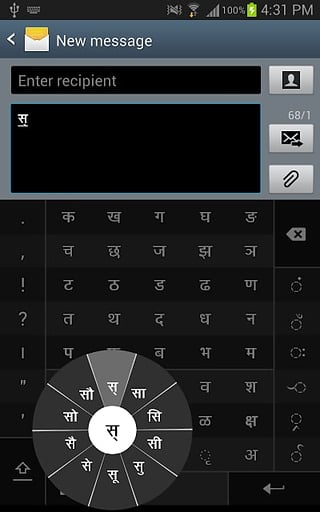
Swarachakra Marathi (स्वरचक्र मराठी) is a touch-screen keyboard for inputting text in Marathi. (For Hindi please use Swarachakra Hindi and for Konkani please use Swarachakra Konkani. Swarachakra is also available in Gujarati, Telugu, Kannada, Malayalam, Odia, Punjabi, Bengali and Tamil). Swarachakra uses a logically ordered design based on the structure of Devanagari. Swarachakra displays the consonants sequenced according to the logical structure of Devanagari, phonetically grouped and arranged in a grid similar to those found in most school textbooks.
Typing with Swarachakra
In Devanagari, we frequently need to type a combination of a
consonant (ध) and a
matra (ो) like ध + ो = धो. When you touch a consonant, a chakra with combination of consonants and 10 frequent matras pops up (धा, धि, धी, धु, धू, धे, धै, धो...). The chakra gives a preview of the possible character combinations. To select a combination, you slide the stylus or finger towards it.
Typing
conjuncts like क्रि, स्थ, च्य is particularly hard for most people. Swarachakra makes it easy. First tap on the first part of the combination and select the halant from the chakra (स + ्). Swarachakra then shows a preview of all possible conjuncts that begin with that consonant (स + ् + त = स्त; स + ् + थ = स्थ etc.). If you need to add a matra, select it from the new chakra like earlier (स्था, स्थि, स्थी, स्थु, स्थू...).
To type a
rafar (र्थ), a rashtrachinha (ट्र) or the eyelash ra (-य, -ह), first select the corresponding key from the right-most bottom keys, and then type as usual.
Complete
vowels (अ, आ, इ, ई, उ, ऊ, ए, ऐ, ओ, औ) appear in a separate chakra on the bottom right. The less used vowels and matras are next to it (ऽ, ऑ, ृ, ऋ, ॄ, ॠ, ॆ, ॊ, ॅ, ॉ,). Numerals, symbols and rarely used characters appear on a shift. You could also switch to the QWERTY keypad temporarily to input English characters.
Installing Swarachakra
First, install Swarachakra Marathi by clicking the “Install” button above.
Next, you need to “enable” the keyboard. To enable, open “Settings”, select “Language and Input” and check the box in front of स्वरचक्र मराठी (Swarachakra Marathi) in the “Keyboard and input methods” section.
Finally, click on the “Default” option in the “Keyboard and input methods” section, and select स्वरचक्र मराठी (Swarachakra Marathi) as the default keyboard. (Sorry, but that’s how Android works)
NOTE: Swarachakra is designed for Android 4.0 (ICS) onwards. It does not work right now on older versions because they do not have Unicode support.
“स्वराज्यहामाझाजन्मसिद्धहक्कआहे,आणितोमीमिळवणारच” - बाळगंगाधरटिळक。如果您的设备可以显示这句话在马拉完美的,那么你的设备支持马拉地语和 Swarachakra 也应该很好地工作。如果您没有看到任何文字,或者有些话是不正确的,Swarachakra 可能无法正常工作。
Swarachakra 马拉(स्वरचक्रमराठी)是一个触摸屏键盘在马拉输入文本。 (对于印地文,请使用 Swarachakra 印地文和孔卡尼语,请使用 Swarachakra 孔卡尼语。Swarachakra 也可以在古吉拉特语,泰卢固语,卡纳达语,马拉雅拉姆语,分层素材下载网站,旁遮普语,孟加拉语和泰米尔语)。 Swarachakra 使用基于梵文的结构的,逻辑排列的设计。 Swarachakra 显示根据梵文的逻辑结构进行测序的辅音字母,音素分组并布置在类似于在大多数教科书中找到了一个网格。
与 Swarachakra 键入
在梵文中,我们经常需要输入的组合 A 辅音(ध)和马特拉(ो)像ध+ो=धो。当你触摸一个辅音,辅音有 10 个经常 matras 组合和查克拉弹出(धा,धि,धी,धु,धू,धे,धै,धो...)。该轮给出了可能的字符组合的预览。要选择一个组合,滑动触控笔或手指朝它。
键入合取像क्रि,स्थ,च्य是特别难的大多数人。 Swarachakra 很容易。在组合的第一部分,第一个水龙头,然后从轮的 halant(स+्)。 Swarachakra 则显示,首先是辅音所有可能的合取的预览(स+्+त=स्त;स+्+थ=स्थ等)。如果您需要从新轮加马特拉,选择它像早期(स्था,स्थि,स्थी,स्थु,स्थू...)。
要键入 rafar (र्थ),一个 rashtrachinha(ट्र)或睫毛 RA(-य,-ह),首先从最右边的底部按键对应的键,然后键入像往常一样。
完整的元音(अ,आ,इ,ई,उ,ऊ,ए,ऐ,ओ,औ)出现在右下角单独的查克拉。较少使用的元音和 matras 的旁边(,ऑ,ृ,ऋ,ॄ,ॠ,ॆ,ॊ,ॅ,ॉ,)。数字,符号和很少使用的字符出现在移位。你也可以暂时切换到 QWERTY 键盘输入英文字符。
安装 Swarachakra
首先,点击上面的“安装”按钮安装 Swarachakra 马拉地语。
接下来,你需要“使能”的键盘。要启用,打开“设置”,选择“语言和输入法”,并为您在स्वरचक्रमराठी(Swarachakra 马拉)前面的框中选择“键盘和输入方法”一节中。
最后,点击“键盘和输入方法”部分中的“默认”选项,并选择स्वरचक्रमराठी(Swarachakra 马拉)作
《》公司开发
海沙工作室
《》软件版本
2.2